Category: Resources

This category includes free budget templates for each of the types of pay schedules; as well as guides for each template.

  • Free Bi-Weekly Budget Template and User Guide

    Free Bi-Weekly Budget Template and User Guide

    I will go over everything you need to know about using the free bi-weekly budget template including where to put your income and expenses, how to use the income estimation box on the side, how to make new sheets within the spreadsheet, and how to copy the spreadsheet for a new year. You can see other free budget templates on our resources page.

    When you get paid every other week, it is called bi-weekly. In a bi-weekly pay schedule, there are 26 pay periods. This means that in two months out of the year, you will have 3 paychecks instead of two. If your first paycheck of 2026 is on Friday, January 2, your months with an extra check will be January, July, and December. You can open your free bi-weekly budget template here. If your first paycheck of 2026 will be on Friday, January 9th, your two months with an extra check will be in May and October. You can open your free bi-weekly budget template here.

    I like to use google sheets for my budget templates because they are free, customizable, and don’t require any of my personal information. You can also convert google sheets into excel spreadsheets if you prefer to use excel. The great thing about this conversion is that you can do it without any loss to the formatting or calculations!

    Where to put your income

    There are two boxes for income in most months. There is an extra box for income in March and August for bi-weekly budget spreadsheet A, and for spreadsheet B, it is in June and December. The image below shows what those boxes look like.

    biweekly spreadsheet income section from the free bi-weekly budget template

    The first column shows the type of income it is, the second column is for the estimated amount you will receive, and the third column is for the actual amount you receive. The fourth column shows the difference between your estimated and actual amounts by subtracting your actual income from your estimated income. You can either use your current paycheck for the estimated column or you can use the income estimation box on the far right of the google sheet. The estimated income column is preset to use the income estimation box outcomes.

    How to use the income estimation boxes

    The income estimation boxes use your weekly hours and hourly rate to calculate your after-tax paycheck. It also includes a row for your 401k or other pre-tax retirement contribution that comes from your paycheck automatically. This row is preset for a 5% contribution amount but it can be adjusted to whatever percentage you personally contribute – or it can be changed to 0% if you do not participate in any pre-tax retirement plan.

    biweekly spreadsheet income estimation section from the free bi-weekly budget template

    This is what the income estimation box looks like for your regular hours. You start with your weekly hours and then enter your hourly pay. From there, it automatically calculates your weekly income, which shows at the bottom of the box. You can change the amount for your 401k by entering a new decimal amount in place of the current decimal. At the current preset of 5%, the equation looks like =-V11*0.05. To make it 3%, you would only change the 0.05 to 0.03.

    biweekly spreadsheet income estimation section from the free bi-weekly budget template

    There is another income estimation box underneath the first one. This one can be used to calculate the amount you will make in overtime or if you have a second job. All of the customization rules for the first box also apply to the second box.

    If you are using it for a second job, you will use it exactly like the first income estimation box. If you are using it to calculate how much you might make in overtime, you will type in the following equation: = Regular pay rate + (Regular pay rate/2). An example of this would be =15+(15/2). The cell will calculate this number for you, and then it will finish the calculation for the income estimation.

    Where to put your expenses

    Expenses section of the free bi-weekly budget template

    Under the income section of the free bi-weekly budget template, there is a row that adds up your monthly income and shows the difference between what you expected to get for the month and what you actually made. Then below that is the expenses section. There will be two of these expense boxes – one for each pay period, and a third expense box will be in months that require it. They look like the box to the right of this text. Each of those categories are completely customizable to your needs, and I recommend budgeting for bills for the pay period following your paycheck. An example of this is if you have a bill on Monday and you get paid on Friday, then you would budget for that bill on the Friday before that Monday.

    Just like with the income section, the expense section will show the difference between your estimated and actual expenses. As you get familiar with your expenses, you should be able to adjust your estimated amounts to be closer to your actual spending.

    Underneath the expenses section, are two more sections. Directly underneath this section will be the expenses total summary section. This section shows your estimated expenses, actual expenses, and the difference between the two for the entire month. The last section is the monthly balance summary. This section shows your cash flow for the month – all of your expenses, all of your income, and then it will show you whether you spent more or less than you made for the month.

    Google sheets tips

    How to create more sheets within an existing spreadsheet.

    If you need to make more sheets within the existing sheet, you start by right-clicking on one of the months at the bottom. This will show some options, and the one you need to click on is “Duplicate”. Then you can click and hold onto that sheet to move it to where you need it. Doing this will copy an existing sheet but keep it in the same document.

    How to make an entirely new sheet for the new year.

    If you need to make a new spreadsheet, you will start by clicking on “File” at the top left of the page. Then you will click “Make a copy”, which you will see in the first section of the drop-down menu. After that, you will see a pop-up with an option to rename the new sheet you are creating, as well as move it to a new place in your drive – if you so desire.

  • Maximizing Your Wealth: Strategies For Improving Your Net Worth

    Maximizing Your Wealth: Strategies For Improving Your Net Worth

    When it comes to finances, there are many metrics that people use to assess their financial health. One of the most important metrics is net worth. Net worth is the value of everything you own minus the value of everything you owe. It is a way to measure your overall financial position and is a useful tool for assessing your progress towards your financial goals.

    Your net worth is a snapshot of your financial situation at a specific point in time. It can fluctuate over time as you accumulate or reduce assets and debts. Your net worth is important because it can help you make informed financial decisions, such as whether to take on additional debt or invest in assets.

    How to Create a Net Worth Statement

    Creating a net worth statement is a simple process that involves adding up the value of everything you own and subtracting the value of everything you owe. Here are the steps to create a net worth statement:

    Step 1: List Your Assets

    Start by creating a list of all the assets you own. This includes your cash savings, investments, retirement accounts, real estate, vehicles, and any other assets that have value. Be sure to include the current market value of each asset. The original value of the asset will not accurately reflect the increase in value due to inflation.

    white and red wooden house with fence
    Photo by Scott Webb on Pexels.com

    Step 2: Add Up the Value of Your Assets

    Once you have a list of all your assets, add up their total value. This will give you the total value of everything you own.

    Step 3: List Your Liabilities

    Next, create a list of all your liabilities. This includes any debts you owe, such as credit card debt, student loans, mortgages, and car loans.

    couple calculating all their net worth
    Photo by Mikhail Nilov on Pexels.com

    Step 4: Add Up the Value of Your Liabilities

    Once you have a list of all your liabilities, add up their total value. This will give you the total amount of debt you owe.

    Step 5: Subtract Your Liabilities from Your Assets

    Finally, subtract the total value of your liabilities from the total value of your assets. The result is your net worth.

    Here is an example to illustrate this process:

    Assets:

    • Cash savings: $10,000
    • Investments: $50,000
    • Retirement accounts: $100,000
    • Real estate: $250,000
    • Vehicles: $30,000 Total assets: $440,000

    Liabilities:

    • Credit card debt: $5,000
    • Student loans: $20,000
    • Mortgage: $200,000 Total liabilities: $225,000

    Net worth: $215,000 ($440,000 – $225,000)

    Tips for Improving Your Net Worth

    If you want to improve your net worth, there are several strategies you can use. Here are a few tips to help you get started:

    1. Increase Your Income

    One of the easiest ways to to do this is to increase your income. This can be done by taking on a side job or by asking for a raise at your current job. You can also participate in some kind of professional development such as getting a certificate or a degree. Consequently, this may help you get a raise at your current job or may help you get a raise by switching jobs.

    pexels-photo-3531895.jpeg
    Photo by John Guccione www.advergroup.com on Pexels.com
    1. Reduce Your Expenses

    Another way to improve it is to reduce your expenses. This can be done by cutting back on unnecessary expenses or by finding ways to save money on essential expenses.

    1. Pay Down Your Debt

    Paying down your debt is another effective way to improve. This can be done by making extra payments on your loans or by consolidating your debt into a single, lower-interest loan. For example, you can switch your payment schedule of your car loan from monthly to bi-weekly and get in one extra payment a year!

    1. Invest Wisely

    Investing in assets that appreciate in value is an effective way to grow your net worth over time. However, it’s important to remember that investing always carries some level of risk. While stocks, real estate, and other investments may have a track record of increasing in value over time, they can also experience downturns and losses. It’s important to conduct thorough research and seek professional advice before investing in any asset.

    One of the benefits of investing in stocks is that they offer the potential for high returns. Stocks represent ownership in a company and their value can increase as the company grows and becomes more profitable. However, stocks also carry the risk of market volatility and can experience sharp declines in value. It’s important to diversify your stock portfolio and invest in a range of companies to minimize risk. Investing in a fund, such as a mutual fund or index fund, can help you diversify because they include many different stocks.

    person holding a smartphone
    Photo by Anna Nekrashevich on Pexels.com
    1. Avoid Taking on More Debt

    Finally, it’s important to avoid taking on more debt than you can afford. This can be done by creating a budget and sticking to it, or by avoiding high interest loans and credit cards. By keeping your debt levels under control, you can avoid paying excessive interest charges and fees, and instead focus on building your net worth over time. Remember, a positive net worth is a key indicator of financial health and stability, so it’s worth taking the time to create a net worth statement and work towards improving it. With discipline and good financial habits, anyone can achieve a strong net worth and enjoy the benefits of financial freedom and security.

  • Free Weekly Budget Template & User Guide

    Free Weekly Budget Template & User Guide

    I will go over everything you need to know about using this spreadsheet template including where to put your income and expenses, how to use the income estimation box on the side, how to make new sheets within the spreadsheet, and how to copy the spreadsheet for a new year. You can download your free weekly budget template here. If you would like to check out our other budget templates, you can see them on our Resources page.

    I like to use google sheets for my budget templates because they are free, customizable, and don’t require any of my personal information. You can also convert google sheets into excel spreadsheets if you prefer to use excel. The great thing about this conversion is that you can do it without any loss to the formatting or calculations.

    Where to put your income

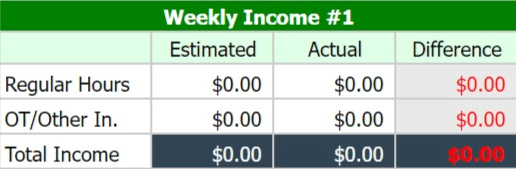
    There are four boxes for income on each month’s sheet, for each of the four weeks in a month. The image below shows what those boxes look like.

    The first column shows the type of income it is, the second column is for the estimated amount you will receive, and the third column is for the actual amount you receive. The fourth column shows the difference between your estimated and actual amounts by subtracting your actual income from your estimated income. You can either use your current paycheck for the estimated column or you can use the income estimation box on the far right of the google sheet. The estimated income column is preset to use the income estimation box outcomes.

    How to use the income estimation boxes

    The income estimation boxes use your weekly hours and hourly rate to calculate your after-tax paycheck. It also includes a row for your 401k or other pre-tax retirement contribution that comes from your paycheck automatically. This row is preset for a 5% contribution amount but it can be adjusted to whatever percentage you personally contribute – or it can be changed to 0% if you do not participate in any pre-tax retirement plan.

    Income estimation box for calculating after-tax income/paycheck

    This is what the income estimation box looks like for your regular hours. You start with your weekly hours and then enter your hourly pay. From there, it automatically calculates your weekly income, which shows at the bottom of the box. You can change the amount for your 401k by entering a new decimal amount in place of the current decimal. At the current preset of 5%, the equation looks like =-V11*0.05. To make it 3%, you would only change the 0.05 to 0.03.

    Income estimation box for calculating after-tax income/paycheck

    There is another income estimation box underneath the first one. This one can be used to calculate the amount you will make in overtime or if you have a second job. All of the customization rules for the first box also apply to the second box.

    If you are using it for a second job, you will use it exactly like the first income estimation box. If you are using it to calculate how much you might make in overtime, you will type in the following equation: = Regular pay rate + (Regular pay rate/2). An example of this would be =15+(15/2). The cell will calculate this number for you, and then it will finish the calculation for the income estimation.

    Where to put your expenses

    Expenses section of budget spreadsheet

    Under the income section of the free weekly budget template, there is a row that adds up your monthly income and shows the difference between what you expected to get for the month and what you actually made. Then below that is the expenses section. There will be four of these expense boxes – one for each week. They look like the box to the right of this text. Each of those categories are completely customizable to your needs, and I recommend budgeting for bills for the week of your paycheck. An example of this is if you have a bill on Monday and you get paid on Friday, then you would budget for that bill on the Friday before that Monday.

    Just like with the income section, the expense section will show the difference between your estimated and actual expenses. As you get familiar with your expenses, you should be able to adjust your estimated amounts to be closer to your actual spending.

    Underneath the expenses section, are two more sections. Directly underneath this section will be the expenses total summary section. This section shows your estimated expenses, actual expenses, and the difference between the two for the entire month. The last section is the monthly balance summary. This section shows your cash flow for the month – all of your expenses, all of your income, and then it will show you whether you spent more or less than you made for the month.

    Google sheets tips

    How to create more sheets within an existing spreadsheet.

    If you need to make more sheets within the existing sheet, you start by right-clicking on one of the months at the bottom. This will show some options, and the one you need to click on is “Duplicate”. Then you can click and hold onto that sheet to move it to where you need it. Doing this will copy an existing sheet but keep it in the same document.

    How to make an entirely new sheet for the new year.

    If you need to make a new spreadsheet, you will start by clicking on “File” at the top left of the page. Then you will click “Make a copy”, which you will see in the first section of the drop-down menu. After that, you will see a pop-up with an option to rename the new sheet you are creating, as well as move it to a new place in your drive – if you so desire. You can also come back here for next year’s free weekly budget template!